 Excel Link Rescue
How to fix broken links in Excel
An Excel workbook link breaks when the workbook it points to is no longer where Excel expects it. The fix is to point the reference at the file's current location, either through Excel's own Change Source command or with a tool that can show you every affected reference before it writes anything.
Why workbook links break
A workbook link stores the location of the source file. Excel resolves that location when it needs fresh values. If the file is no longer there, the reference cannot be resolved and the stored values go stale.
The usual causes are ordinary file management:
- the source workbook was moved to a different folder
- the source workbook was renamed
- a project or year-end folder was reorganised
- a network share moved, or a mapped drive letter changed
- the file was created on another computer and still points at that person's user folder
- the source file was deleted or archived
None of these change anything inside your workbook. The formulas are intact and the last values Excel retrieved are still there. Only the stored path is wrong.
Workbook links are not hyperlinks
A workbook link is an external reference used by a formula, a defined name or a chart, and it looks
like ='C:\Finance\[Budget.xlsx]Sheet1'!A1. A hyperlink is something you click to open a
file or a web page. They break for similar reasons but they are managed in completely different places
in Excel, and searching for one will not find the other.
Repoint a broken link in Excel
Excel can change the source of a link without touching your formulas. Where the command lives depends on your version. In current Microsoft 365 builds, open the Data tab and look for Workbook Links in the Queries and Connections group, which opens a pane listing each linked workbook. In older versions the same information appears in a dialog under Data then Edit Links.
- Open the workbook that contains the broken link.
- Open the workbook links pane or the Edit Links dialog.
- Select the source workbook that cannot be found.
- Choose Change source and browse to the file's current location.
- Let Excel update the values, then save.
Every reference that pointed at the old file now points at the new one. The formulas keep their shape and the sheet and cell addresses inside them are unchanged.
Where this gets awkward
Changing one source in a small workbook is quick. The difficulty comes from everything around it.
You have to know which file the link is supposed to point at. The pane shows the name of the source workbook, but if a folder was reorganised months ago, the name alone does not tell you which of several similarly named copies is the right one. You also cannot see, before committing, how many references depend on that source or where they are. A defined name used by three formulas and a chart series pointing at the same workbook will all change together, and the dialog does not spell that out.
There is also no preview. Change Source applies immediately to the open workbook, and the safety net is whatever copy of the file you remembered to make first. On a workbook that other people rely on, that is usually the part worth improving.
Repairing the link with Excel Link Rescue
Excel Link Rescue works on a closed copy of the workbook. It reads the file, lists every external workbook reference it finds, and groups them by the source file they point at, so a source used in eight places appears once with eight references attached to it.
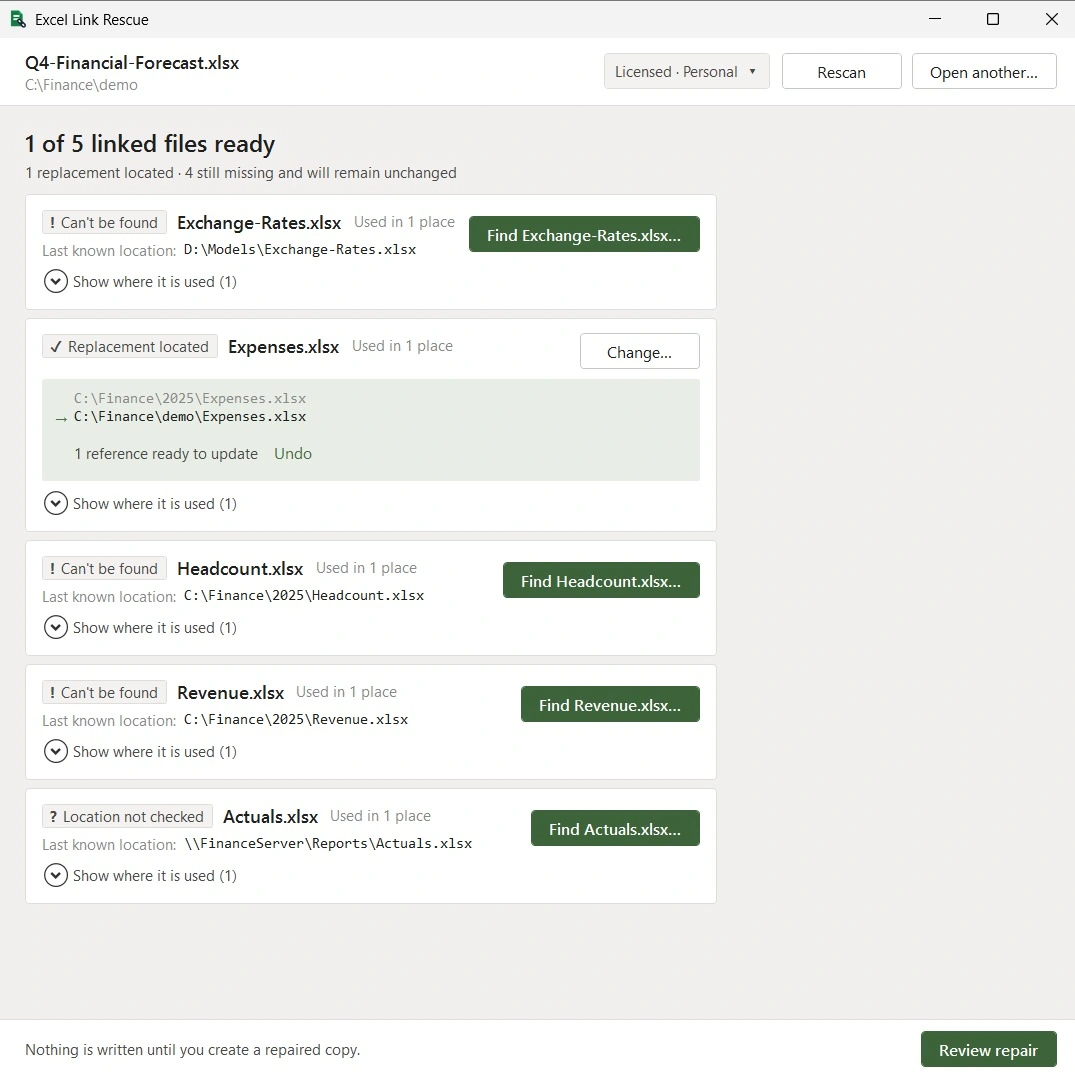
You pick the replacement file for each missing source with a normal file dialog. Sources you do not locate are left exactly as they are, so a workbook with four broken links and one you cannot find yet is still worth repairing.
Check the repair before it is written
The review screen lists what will change and what will not, with the reference counts for each. Nothing has been written to disk at this point.
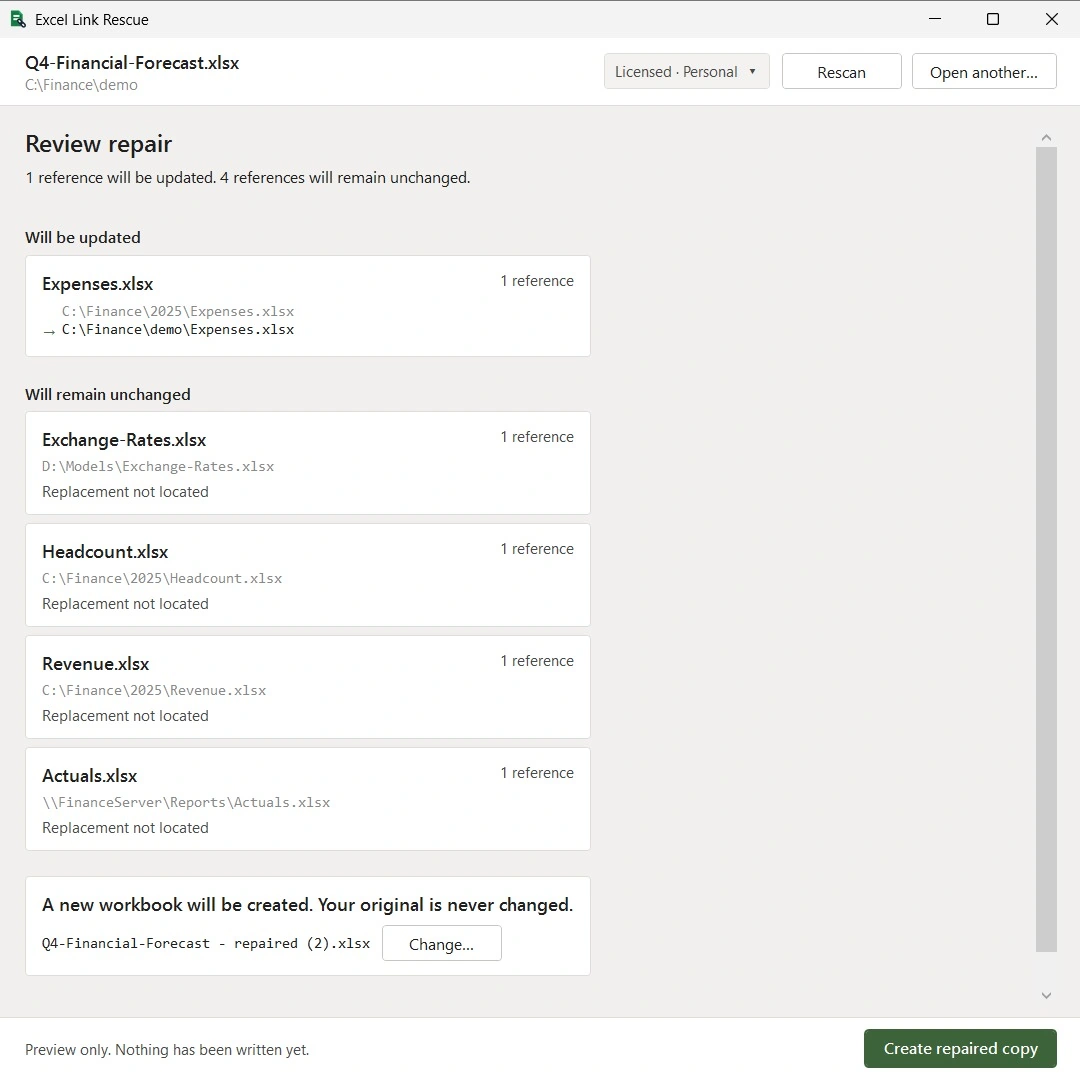
The repair itself writes a new workbook and leaves the original file untouched. After writing, the new file is checked against the plan: that each intended reference was updated, that nothing else changed, that no reference disappeared, and that the parts of the file which had no reason to change are identical to the original.
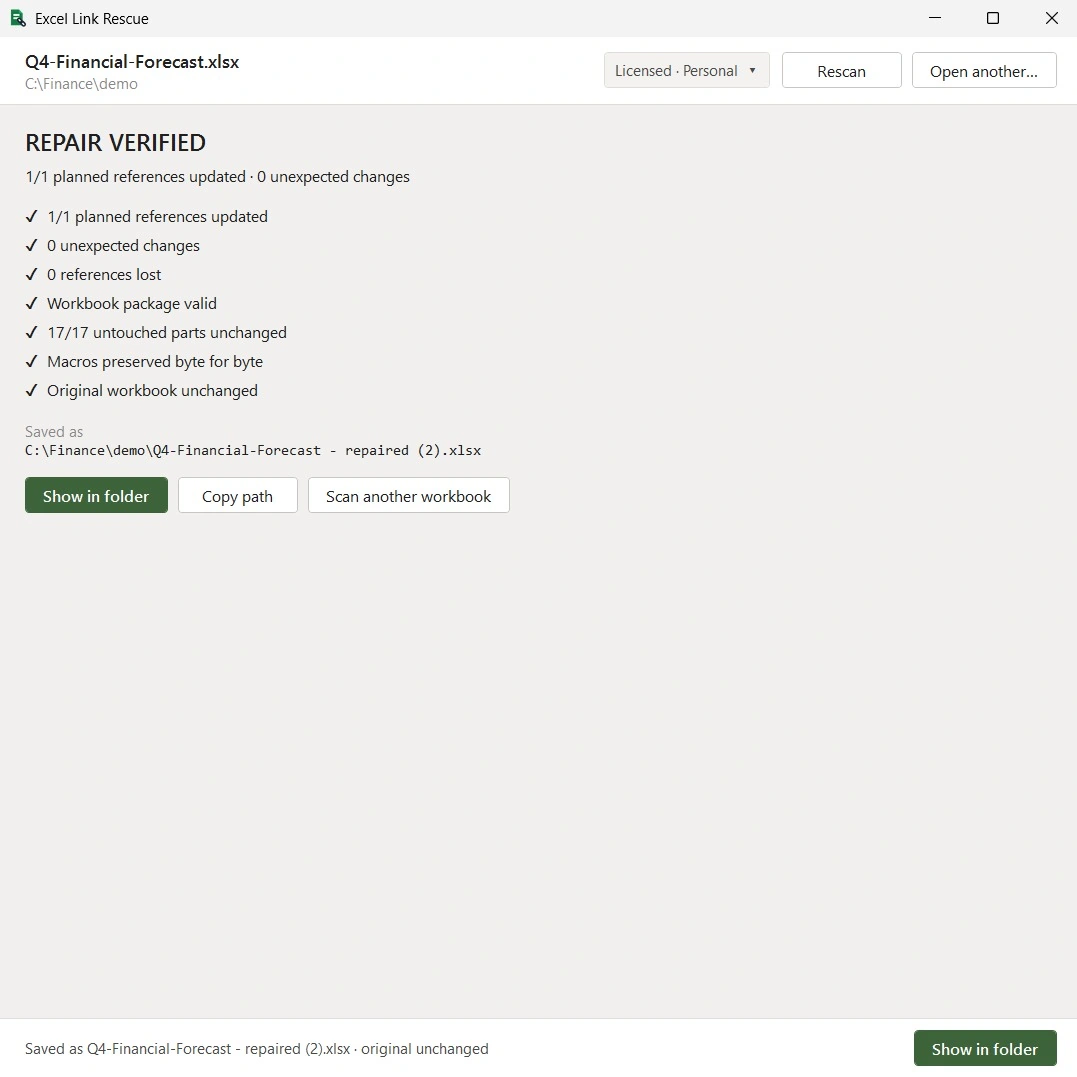
If any of those checks fail, the repaired file is discarded rather than handed to you. That is the behaviour worth having on a workbook you cannot rebuild from memory.
Fixing a link and breaking a link are different things
Excel's Break Links command replaces the linked formulas with the values they currently hold. The dependency on the other workbook is gone, and so is the formula. It is a reasonable thing to do when you are sending a workbook to someone who will never have access to the source files, but it cannot be undone by relinking afterwards.
Repairing a link keeps the formula and corrects the path it points at. Excel Link Rescue only does the second. It does not break or remove links.
What Excel Link Rescue reports but does not change
Formulas, defined names, chart references, hyperlinks and the workbook's own link entries are repaired. Some other things that reference outside files are listed in the scan so you know they exist, but are not modified in this version: DDE links, linked OLE objects, Power Query sources, PivotTable sources and data connections. They appear in the results with the reason they were left alone.
Questions
Will changing the source break my formulas?
No. Changing the source rewrites the file path inside the reference. The sheet name, the cell addresses and the structure of the formula stay the same.
Do I need the source workbook to be available to repair the link?
You need to know where the replacement file is, because you select it. The original source that went missing does not need to exist any more.
Can I repair some links and leave others alone?
Yes. Sources you do not locate stay exactly as they were, and the review screen lists them so it is clear what the repair is leaving behind.
Does the original workbook change?
No. The repaired workbook is written as a new file and the original is opened read-only. The verification step confirms the original is unchanged.
Why does Excel still say there are links after I deleted the formulas?
A reference can survive in places that are not visible on a worksheet, most often a defined name or a chart series that still points at the other workbook. Scanning the file lists those alongside the formulas. There is more detail in the guide on finding external links.
Scan your workbook
Scanning a workbook and previewing a repair are free, so you can see which sources are missing and exactly what a repair would change before deciding whether to buy a licence.
Download Free