 Excel Link Rescue
Fix Excel links after moving files
A workbook stores where its source files were when the link was made. Move the sources, rename a folder or copy the model to another computer, and the stored locations point at nothing. The formulas are fine; the paths need to be updated to the new location.
Why moving files breaks the link
When Excel saves a reference to another workbook it records that workbook's location. If the source sits in the same folder tree as your workbook, the stored location can be relative to your file, in which case moving both together survives the move. If it is somewhere else, on another drive or on a network share, the location is absolute and it stops resolving the moment the file is not there.
This is why moving a whole folder sometimes works and sometimes does not. Moving your workbook and its sources together, keeping the same structure, has a good chance of surviving. Moving only the sources, or reorganising the structure around them, does not.
Situations that cause this
- A project folder moved to a different drive, or to a new share after a server migration.
- A finance folder reorganised at year end, so
2025becameArchive\2025. - A model copied to another computer, still pointing at the previous owner's user folder, for example
C:\Users\John\Documents\Finance\2025. - A mapped drive letter that changed, so
S:\is nowM:\. - Files pulled out of a shared location onto a local disk to work on them.
In all of these the workbook itself is undamaged. Nothing inside it was corrupted by the move. Only the recorded locations are out of date.
Repoint the references in Excel
Excel can do this without touching your formulas. In current Microsoft 365 builds, open the Data tab and choose Workbook Links in the Queries and Connections group. In older versions, use Edit Links on the same tab. Select each source that cannot be found, choose Change source, and browse to where the file lives now.
With one or two sources this takes a couple of minutes. With a model that reads from six files, all of which moved to the same new folder, you repeat the same browse six times and have no combined view of what you have done.
When the old and new locations follow a pattern
A move usually affects every source the same way. The old paths share a prefix and the new ones do too, which makes the whole change easy to check once you can see it written out.
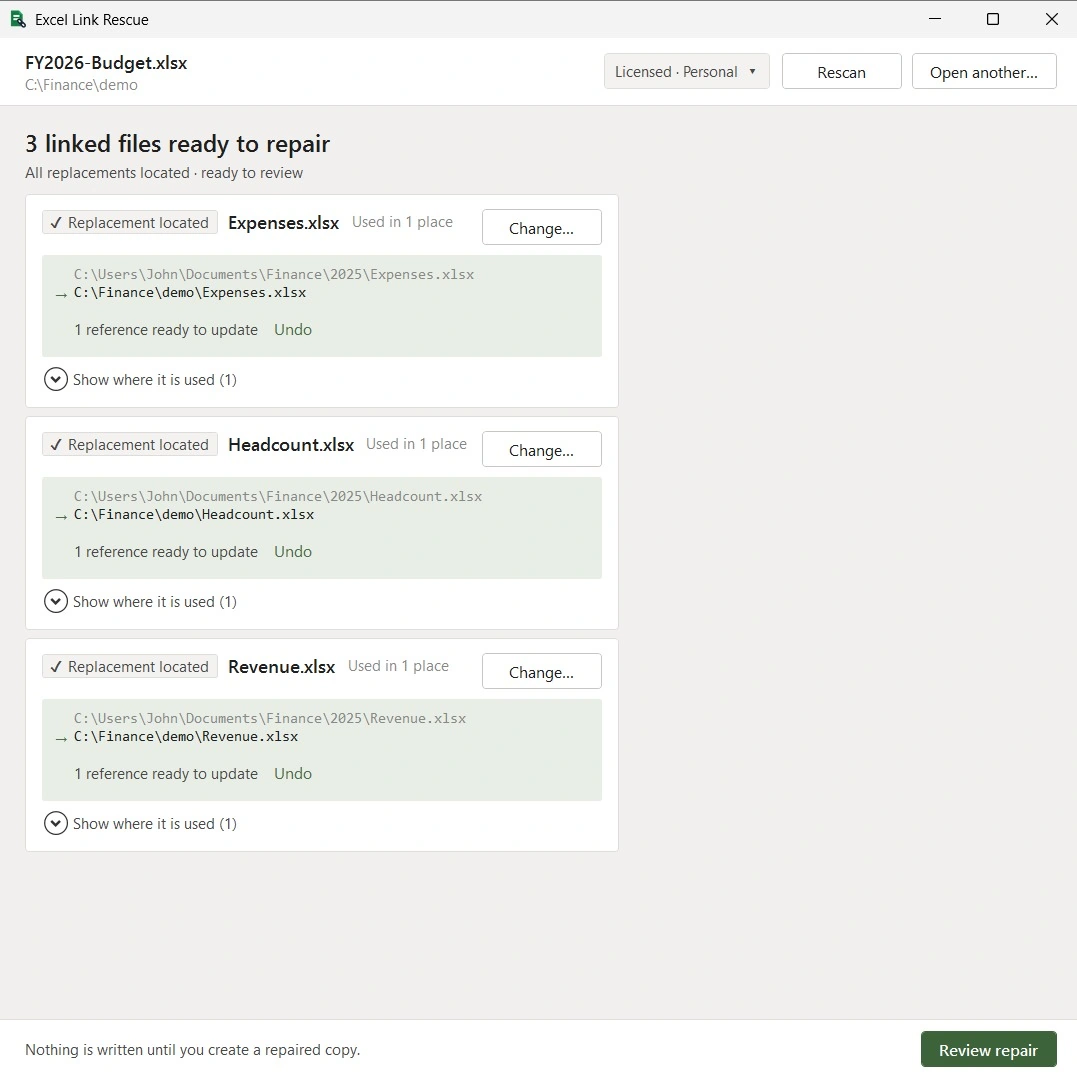
Each source shows the path that is stored in the workbook and the file you picked to replace it. Reading them next to each other is usually enough to catch the one you pointed at the wrong copy, which is the mistake that actually happens after a reorganisation.
Repair without touching the original
The repair writes a new workbook. The file you scanned is opened read-only and is not modified, so if you picked the wrong replacement you still have the original and the only cost is doing it again.
After the new file is written it is checked against the plan: the intended references were updated, nothing else changed, no reference was lost, and the untouched parts of the file are identical to the original. A failed check means the output is discarded rather than given to you as though it worked.
Questions
Why did my links break when I moved the folder?
The workbook stored where each source file was. Moving the sources, or changing the structure around them, leaves those stored locations pointing at somewhere the files no longer are.
Do I have to fix every formula by hand?
No. The path is stored once per source workbook, so repointing the source updates every formula, name and chart that used it.
The old path is a different user's folder. Does that matter?
No. A path like C:\Users\John\Documents is just a recorded location. Repointing the source at the file's current location is the same operation as any other move.
Can I fix this without the old files being available?
Yes. You need to be able to point at the files in their new location. The old location does not need to exist any more.
What if only some of the sources moved?
Locate the ones that moved and leave the rest. The review screen lists which references change and which stay as they are.
Check what moved
Scanning shows every source the workbook expects and which of them are missing, for free, before you decide whether to repair anything.
Download Free