 Excel Link Rescue
Change multiple Excel link sources at once
Two different things get called a bulk link change. One is a single source workbook used by dozens of references, which Excel already handles in one action. The other is several different source workbooks that all need repointing, which is where the repetition comes from.
Many references to one workbook
If forty formulas, two defined names and a chart all read from the same source workbook, that is one link as far as Excel is concerned. Changing its source updates all of them at once. You do not need to touch the formulas, and you do not need a special tool for it.
This is worth checking before assuming you have a bulk problem, because a workbook that looks like it has fifty broken references often has three broken sources.
Many different source workbooks
The real repetition comes from a workbook that pulls from several files, all of which moved. Each source is a separate entry in the workbook links pane, so each one is a separate Change Source action, a separate file dialog, and a separate recalculation.
Excel gives you no combined view while you do it. After the fourth source you are relying on memory for which ones you have already done and which of the remaining entries were supposed to change at all.
Locate the sources first, then review the set
Excel Link Rescue separates the two halves of the job. You locate a replacement for each source you want to repoint, and nothing happens while you do it. When you are finished, the review screen shows the whole set together.
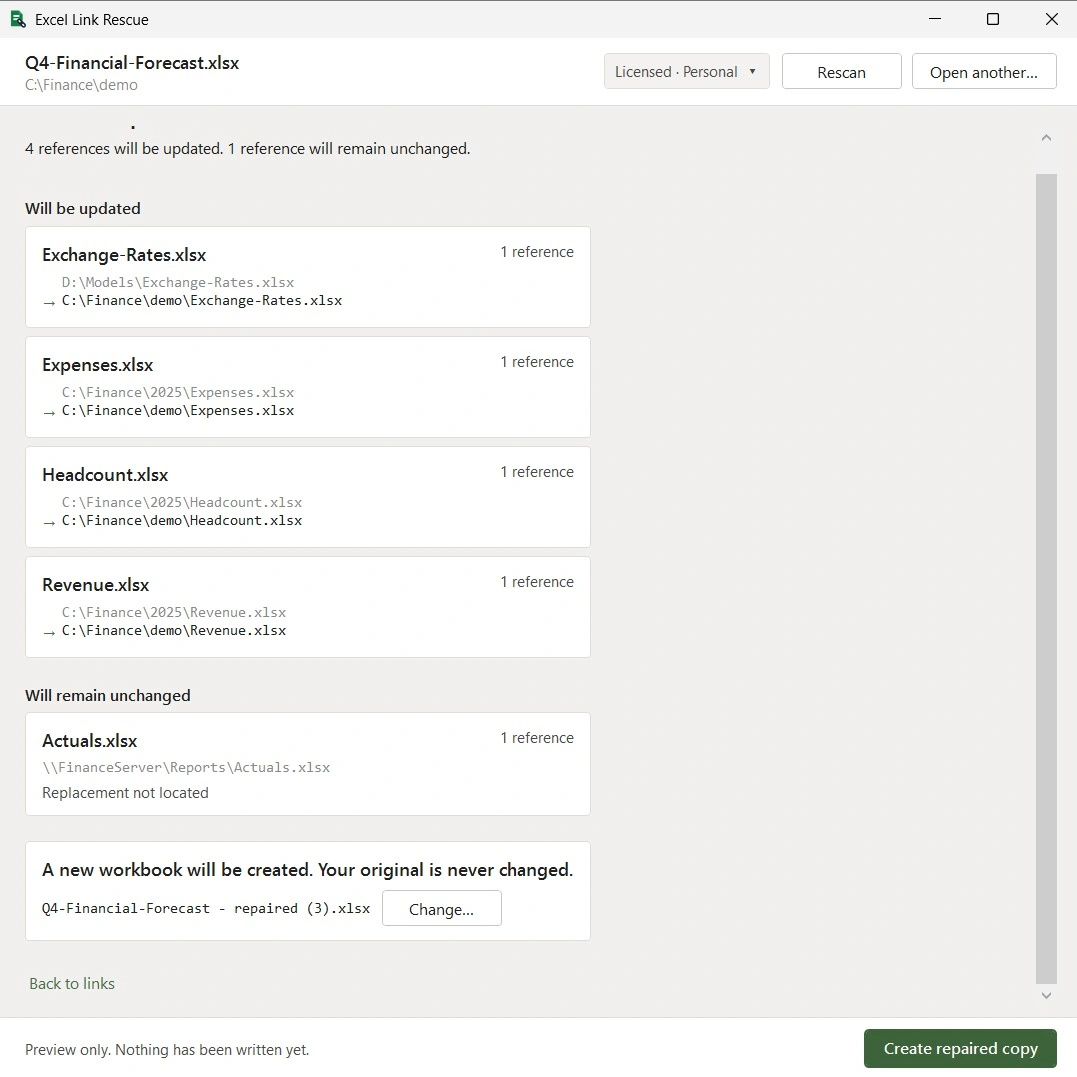
The review is explicit about both halves. References that will be updated are listed with their old and new paths. References that will stay as they are appear in their own section with the reason, whether that is a source you chose not to locate or a link type this version reports without changing.
You do not have to repair everything in one pass. A workbook with five broken sources where you have found four is a workbook worth repairing now, with the remaining one clearly listed as unchanged.
What happens when the repair runs
The repaired workbook is written as a new file. The original is not modified. After writing, the new file is checked against the plan: each intended reference was updated, no other reference changed, none disappeared, and the parts of the file that had no reason to change are identical to the original. If any check fails the output is discarded rather than handed over.
With several sources changing at once, that accounting is the part that matters. It is the difference between believing the repair did what you asked and knowing which references changed.
Questions
Can I repoint several source workbooks in one pass?
Yes. You locate a replacement for each source, review them together, and the repair writes one new workbook with all of the changes applied.
Can I change some sources and leave the rest alone?
Yes. Sources you do not locate are left exactly as they are, and the review screen lists them so the repair does not quietly skip anything.
Is there a find and replace for link paths?
Not in this version. Each source is replaced by choosing the file it should point at, which avoids the usual risk of a text replacement matching a path you did not intend to change.
How do I know a bulk change did what I asked?
The verification step after writing reports how many planned references were updated and whether anything unexpected changed, rather than leaving you to spot check formulas.
Review the whole set first
Scanning and previewing are free, so you can see every source, every reference count and everything that would stay unchanged before buying a licence to write the repair.
Download Free